Archive for category Cloud
Federation and the cloud
Posted by Nick Bowyer in Cloud, Office365 on April 21, 2012
The term Federation is something I am familiar with, thanks largely to may hours spent watching Star Trek as a kid. The United Federation of Planets in the TV series/movies referred to very different cultures having a common bond, in a political sense. Federation when it comes to cloud services has more than one meaning, and I want to use this blog to explain the term Federation and how it relates to various cloud services and how it improves the overall cloud experience.
We will talk about federation relating to cloud services hosted by Microsoft specifically Office 365, although Windows Intune and Azure also use the term Federation (ill save those for a future blog post). There are many other technologies that deliver similar results with other cloud services but I really want to focus on the term federation when it relates specifically to a Microsoft solution.
Identity Federation
ADFS
In the old days of Windows NT if you wanted to access information in another Domain you would need to setup a trust , a trust was setup either one way or two way and was generally quite unreliable. It did however address the issue of sharing information between business units or organizations (if you were brave). There needed to be a better more secure way of sharing information while limiting the access either party had to the other party’s security context.
Along came Active Directory Federation Services or ADFS, it has been around for some time and uses Microsoft’s version of the Security Assertion Markup Language or SAML claims based authentication model. It is now in its second generation and with version 2.0 comes the ability to federate your Active Directory with Office 365. ADFS 2.0 isn’t just restricted to Office 365 for its federation options, there are a number of cloud providers that support ADFS including IBM Tivoli, Novell Access manager, Sun Open SSO and CA (Site Minder and Federation Manager) using SAML, Microsoft is also a founding member of OpenID the organisation that is promoting standards in identity management.
ADFS 2.0 allows a customer to federate their identity to the cloud services contained within Office 365, creating what is known as a Single Sign On experience for end users. Single Sign On or SSO allows users to login to their PCs (assuming they are connected to an Active Directory service with ADFS installed) and seamlessly connect to any Online Service they are licensed for and have permission to access. SSO is the holy grail of any cloud service and removes one of the biggest barriers to cloud adoption in the enterprise.
ADFS is a pre-requisite when you want to configure Exchange or Lync (Lync will allow this in a future release) to run in a hybrid scenario (what used to be called co-existence). For more information on running a hybrid deployment of Exchange 2010 SP2 go here: http://technet.microsoft.com/en-us/library/gg577584.aspx
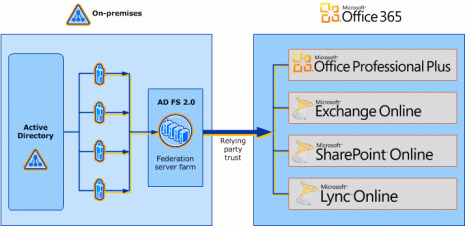
Due to its complexity and demand on resources (servers and administration) ADFS is only suited to larger organizations, thus ADFS implementations are only possible with the Enterprise offering of Office 365 (E and K plans). ADFS also requires an additional Windows Sever 2008 (or R2) and some thought into providing a resilient installation (read more than one ADFS server!), if the ADFS service fails… users will no longer be able to connect to their cloud services either from inside their network or externally.
To learn more about ADFS go here : http://technet.microsoft.com/en-us/library/cc736690(v=ws.10).aspx
For a tutorial video on identity and Office 365 go here: http://technet.microsoft.com/en-us/edge/office-365-jump-start-04-microsoft-office-365-identity-and-access-solutions
Virtual Labs on ADFS and Federation here: http://technet.microsoft.com/en-us/office365/hh744605
DirSync
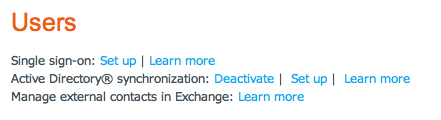
Given the complex nature of setting up a resilient ADFS service there needs to be another way to synchronize user accounts from an on-premise Active Directory to the cloud. The previous version of Microsoft Online Services (Business Productivity Online Services) or BPOS attempted to make life easier for administrators by providing a one-way sync from the on premise Active Directory Server to the cloud. This sync known as DirSync would create the user ID’s in the cloud (over writing whatever was there to begin with), the one major problem was that it didn’t synchronize the users Passwords. This option is still available to all users of Office 365 and doesn’t require the complexity associated with ADFS, it will however only synchronize objects from the on-premise AD to the cloud, including groups and users. The DirSync application has been updated to include a x64 version that in turn must be installed on a members server (non-domain controller). From the admin portal under users you are able to setup the DirSync function.
To learn more about DirSync go here: http://onlinehelp.microsoft.com/en-us/office365-enterprises/ff652543.aspx
Application Specific Federation
Now that we have covered the use of Federation when it relates to your user identity its nice to know that the word Federation is also used when describing the sharing of information between applications existing in separate organizations.
Lync Online
Lync Online delivers its Federation experience by putting you in touch with those who are not part of your organization. It has the ability to federate presence, instant messaging and voice/video calls with the following deployments:
- On-premise Office Communications Server 2007 R2
- On-premise Lync Server
- MSN (Live) Messenger
- Other Office 365 customers
Obviously the other organizations will need to have federation setup themselves. For your Office 365 deployment it is as easy as ensuring the SRV record is configured in your DNS settings as described previously here and the federation is enabled in your Office 365 administration portal / Lync Online Control Panel as pictured below.

There is a tool which searches you contacts for those who are available to federate via Lync here: http://gallery.technet.microsoft.com/Who-Can-Federate-Tool-a9e00d23 There is also a database maintained of the organizations with either OCS 2007 R2 or Lync on-premise / Online who are available for federation available here: http://www.lyncdirectory.com/
Exchange Online
Federation relating to Microsoft Exchange is a one-to-one relationship between two federated Exchange organizations that allows recipients to share free/busy (calendar availability) information. It is also known by the term “federated delegation“. Both sides of the Federation need to be configured, for an on-premise Exchange 2010 deployment a connection must be made to the Microsoft Federation Gateway. The Microsoft Federation Gateway provides applications with a free, simple, standards-based method of establishing trust between separate organizations that uses SSL certificates to prove domain ownership. Because the organizations federate with the gateway instead of with each other, it is much easier for an organization to establish trust relationships with multiple partners than is possible when it uses conventional one-on-one federation or other trust relationships. The scope of the federation can be easily controlled by creating allow or deny lists of users and domains for licensing and by specifying the domains that can receive publishing licenses. This guarantees that only appropriate organizations are given access to protected information. More information for a local deployment of Exchange 2010 can be found here: http://technet.microsoft.com/en-us/library/dd335047.aspx or here http://technet.microsoft.com/en-us/library/dd638083.aspx .
With Office 365 the hard work is done for you. All of the detail described above is baked right in and it is up to the users to delegate the access to their own calendars individually. This is turned off by default and can be enabled to the following degree:
- No free/busy access
- Free/busy access with time only
- Free/busy access with time, plus subject and location
This access can be granted via the Outlook application and can be granted to users outside the organization if they are using a Federated Exchange Server or another Office 365 tenant. There is a tool that will tell which one of your contacts is available to view you calendar available to download here: http://gallery.technet.microsoft.com/Exchange-Federation-fdf8a324
Sharepoint Online
Although not strictly Federation at the application level, it utilizes Federation between the Office 365 tenant and Windows Live ID’s. Within any deployment of Office 365 and Sharepoint Online you are able to invite external users to view or edit your documents by simply sharing the site/library and use their email address. If the recipient hasn’t done so already they will be prompted to create a Live ID when they attempt to access your site using their email address. This external access is included in Sharepoint Online within Office 365 and doesn’t consume any licenses. Keep in mind as I mentioned previously that the P plan of Sharepoint Online does NOT deliver the content over a secure channel (SSL) so you should ensure you choose the right plan for your intention.
Federation is a term that will be used hand in hand with any cloud conversation in the future. As with any technology it pays to understand it ahead of time and ensure your customers/users are using it in an appropriate manner.
Robust email for business
Posted by Nick Bowyer in Cloud, Office365 on April 2, 2012
I may have a better appreciation of the things I can do within my Office 365 environment due to my past life as an IT administrator, but I thought it would be good to point a few of those features out and describe why they may mean something to the average business user. The application that is most attractive out of the Office 365 suite has to be Exchange Online. This hosted email service is available as a base component of all of the suites on offer and is probably the “first cab off the rank” when a customer looks to a cloud offering.
Exchange Online launched in New Zealand back in April 2009 and it formed part of what was then known as BPOS or Business Productivity Online Suite. This product was based on a multi-tenanted version of Exchange 2007. In the middle of last year Office 365 launched and with it came a better Exchange Online experience, offering some of the great features you would get with an on premise installation of Exchange 2010. As with any hosted offering the products get better over time and since the release of Office 365 certain features have been added to the suite. These features are make it easier for non-technical employees to administer the functionality of what would be normally complex back-end systems all via a web portal.
Mobile device management
One of the biggest advances in email technology over the past few years has been the introduction of Mobile access. Microsoft set the standard in my opinion with ActiveSync, blowing away the previous market leader RIM (aka Blackberry). With the RIM offering you needed middleware to connect and manage the mobile handsets, furthermore they needed to be Blackberry handsets. ActiveSync on the other hand is now licensed by Microsoft to many handset providers including Apple’s iPhone and iPad, Google Android devices and obviously Windows Phone 7 devices. ActiveSync allows the management of devices from the Outlook Web App experience, remote wipe etc as well as push notification and contact/calendar/contact sync. As an administrator you are also able to restrict access to mailboxes by mobile devices as well.

While Office 365 supports Blackberry devices, the “native” support is for ActiveSync devices as shown above. There has also been an announcement recently to introduce the ability to connect mobile devices via ActiveSync to the Kiosk Worker plan at $3.06 per user per month for a 1Gb mailbox. The kiosk worker plan is great for a mobile worker who is rarely in the office and doesn’t use a desktop PC on a regular basis, it won’t let you connect Outlook to the mailbox but the Outlook Web App is more than enough for occasional users. For more information on Exchange Online Plans visit www.office365.com
Legal Hold and Archive
Legal hold is something that I believe should be part of any email solution. In the press you hear often how emails can get people, and more importantly businesses into and sometimes out of trouble. The legal hold functionality of Exchange Online is provided by the premium product in either the Exchange Online Plan 2 stand alone product or the E3 and E4 suites. Do not confuse legal hold with the personal archive capability.
Personal Archive – Provides the ability for users to manage the retention of mail in their mailboxes. Personal archive is available to all suites and product versions of Exchange Online with the exemption of the Kiosk Plans. (Kiosk Plans are able to add the archive product separately). For P1 plans of Exchange Online the Archive and Mailbox capacity is a combined total of 25Gb, Plan 2 is unlimited.
Legal Hold – Provides legal hold capabilities to preserve users’ deleted and edited mailbox items (including email messages, appointments, and tasks) from both their primary mailboxes and personal archives. Administrators can use the Exchange Control Panel or Remote Power Shell to set legal holds on individual mailboxes or across an organization. The administrator can then choose to notify the user of the legal hold or not.
Deleted Item Retention – Provides the end-user with the ability to recover a deleted item from any folder for up to 14 days. This timeframe can be changed using remote Power Shell commands or via a Service request.

E-Discovery
Multi-mailbox search is available in Exchange Online. This comes in useful when investigation is undertaken by Human Resources or a legal investigation takes place. This is a very powerful feature and can be accessed via a web portal (under the Exchange Management Portal from your Admin Site) or via remote power shell cmdlets. The e-discovery power shell scripts can also be used to find and remove email items from multiple mailboxes that match a certain criteria. For more information see: http://www.microsoft.com/exchange/en-us/email-archiving-and-retention.aspx
Filtering
Exchange Online is protected by The Microsoft Forefront Service for anti-spam and malware. This product can be tuned via the Exchange Management portal which is accessible to administrators through the Admin Portal. Most businesses I have dealt with have paid an additional cost to filter un-wanted email from their inboxes using a product hosted by a third-party (ISP or other hosted provider) or in some instances another product sitting on a separate server. This feature comes with all product versions of Exchange Online and in my experience hasn’t failed me yet. The administrator is able to configure the Forefront product to alert users if any spam has been filtered by way of email or indeed turn the feature off altogether and let the spam be dealt with by the Junk Mail folder within Outlook.
Role Based Access
Exchange Online uses a Role-Based Access Control (RBAC) model that allows organizations to finely control what users and administrators can do in the service. Using RBAC, administrators can delegate tasks to employees in the IT department as well as to non-IT employees. For example, if a compliance officer is responsible for mailbox search requests, the administrator can delegate this administrative feature to the officer. It is important to note that many of the features above need to be restricted to certain people within your organization.
These are but a few enterprise features delivered by Exchange Online that expands the value email has to a business. Anywhere access, reliability and security are components of what a robust email solution needs to provide. The pricing for Office 365 Exchange Online products are below (New Zealand $).
- Kiosk (deskless) Users – 1Gb Mailbox for Mobile device access using ActiveSync and Outlook Web App – NZD $3.06 per user per month
- Exchange Online Plan 1 – 25Gb Mailbox for users connecting via Outlook and Mobile devices, includes personal archive – NZD $6.11 per user per month
- Exchange Online Plan 2 – Unlimited mailbox for users connecting via Outlook and Mobile devices, includes personal archive and legal hold ability – NZD $12.25 per user per month.
The products above are also available in select Office 365 Suites. For more information visit http://www.office365.com. Or click here : http://bit.ly/ProvokeTrial
WIX now offers HTML5!
Posted by Nick Bowyer in Cloud, Web apps on March 28, 2012
In one of my earlier posts I talked about a company called WIX who offered a cloud website service allowing users to create beautiful animated websites. One of the small issues I had with the experience was that it limited you to publishing the site using Flash. I was first alerted to the potential for this to change two weeks ago when I saw the Flash logo hovering above the site I had created, it was possible Flash was to become an option. And indeed it did, you now have an option to create your website in HTML5. This comes as welcome news to those of us who understand the difficulty in getting good search engine results (SEO) using Flash based websites.
The introduction of HTML5 to the WIX websites follows what the industry has been asking for, HTML5 is now a multi platform language that supports the ubiquitous iOS operating system used on iPads and iPhones. Previously WIX had offered a “work around” for the iOS devices by providing a separate m.yourdomain.com website however this didn’t share the content from your main site and was very limited in functionality. Now with the new iPad having better resolution than your average HDTV it makes sense to offer the same content on both platforms.


As you can see along with the addition of HTML5, there is an option for users to create their Facebook page layout using the WIX tools and templates. There is still the option to create the legacy “low fi” mobile site as well. This is a great example of what you get when choosing a cloud offering, a feature addition without additional cost.
There are a couple of things I should point out however, you can’t migrate your existing Flash site to HTML5 (kind of makes sense really) and the HTML5 editor still has a “beta” moniker… that won’t bother me as I always make good use of that “save” button!
Go… create and enjoy!
The case for local cloud
Posted by Nick Bowyer in Cloud, Local Cloud Providers on March 25, 2012
I became a systems engineer for an IT firm back in the early 1990’s, back in the good old days when re-installing Windows was a regular piece of advice you would give to your customers in order to solve a software crash. Back in those days it was not uncommon to turn up to a customers site to find software that was installed incorrectly or misconfigured, worse still there was little or no documentation to assist you with restoring the server that had just crashed. Not to mention a tape “backup” that was of little or no value due to lost incremental backup tapes, cumbersome offsite storage or worse still a series of unsuccessful backup jobs leaving the customer with no restorable data.
Those kind of situations were of a regular occurrence and cost customers lots and lots of money. To prevent such catastrophes a customer would be asked to deploy resilient servers with redundant hardware and big capacity backup tapes. More often than not the customer would purchase part of the required solution but not be able to justify the “best practice” solution. Cutting corners was a recipe for disaster but at the end of the day it was what most small businesses in New Zealand could afford.
Technology didn’t come cheap back then, and today at the top end of the market it still isn’t cheap. Resilient server hardware still costs, even though I can buy a 2TB hard drive for under NZ$200 it’s not the same as a high performance RAID system that can cost 5 times as much for the same capacity. Lucky for us that cloud computing has started to take off, companies are now able to access a “best practice” deployment of their favorite software running on the resilient hardware we could only dream of in the 1990’s.
The software companies of today are very different to what they were in the 1990’s, they recognize the fact that their software may be installed incorrectly and cause a customer a great deal of pain. What used to be a few wizards used in the setup process has now become an entire suite of tools focused on management and monitoring. Microsoft is one of the players in the market that provides cloud solutions based on the software they have sold to their customers for many years, allowing them to not only provide the best experience of their software to their customers but also to their partners, IT firms, who also have the ability to run the software in a “best practice” environment. All of the tools Microsoft uses in their data centers in Singapore are now used by partners in New Zealand to run their hosted environments, providing a resilient and efficient service.
Microsoft’s hosted offering is price competitive and, as an economy of scale, it will only get cheaper. Recently Microsoft announced a 20% drop in the pricing of their Office 365 suite. So why would I chose to use a local partner to host my email, CRM or line of business software?
Local cloud providers matter, there are many reasons why you would choose a local cloud provider over a larger provider such as Microsoft or Google. It shouldn’t come down to cost of the subscription alone, there are other important factors to consider when working with a cloud provider.
Location
New Zealand is a very small island in a big ocean and as a result our connectivity to the world is somewhat limited. This will change over time with other connections coming online soon however at this point in time there is only the Southern Cross Cable connecting New Zealand businesses to the internet. This will obviously result in some latency and moreover additional cost depending on the plan you have with your ISP. Local providers are usually connected into the local loop via high speed fiber: think latency of around 10 – 30ms compared to Singapore of around 180ms (what I have seen on a GOOD day). This isn’t a problem for 80% of most businesses and their requirements, such as email, however when you are dealing with applications such as CRM with integration into custom line of business applications the latency starts to have a negative impact on the end user experience. The advice I have is to run a trial of the software you intend to run before you purchase, something all cloud providers offer at no cost.

Size matters
When you think of a local cloud provider don’t be surprised to know that there has been and will continue to be significant investment in large data centers in New Zealand. Over the past 3 years I know of more than three Class 3 data centers that have opened up in New Zealand, these data centers are bigger than a football field and are utilized by your local cloud providers. The photo above shows the inside of one of these data centers just north of Auckland’s CBD. They are built using the same guidelines that Microsoft and Google use and are usually helped along by the various hardware vendors; HP, EMC, Dell etc.
Bespoke solutions
Most providers of cloud solutions are able to keep costs low because they do not provide any level of customization for the solution. To most small businesses this will not matter however when integration to an existing on premise solution is required or better yet that solution is to be pulled into a hosted environment a local cloud provider is the only sensible option to choose. Recently I worked with www.onenet.co.nz to host a customers CRM solution. The solution required a level of customization that OneNet was able to provide in-house allowing for tighter integration to their line of business applications. Furthermore the location of the OneNet servers gave the end users a snappy response when using CRM from within their Outlook client, this was a client requirement in a heavy use scenario.
Throat to choke
Local providers have one benefit as well that the likes of Microsoft and Google will never be able to provide, and that is a local “throat to choke”. Don’t get me wrong, the support I have had from Microsoft whenever I have had “challenges” with aspects of BPOS or Office 365 has been first class, however 100% of the time I am talking with someone in a call-center overseas. With local cloud providers, they are just that, LOCAL. If I have an issue with the cloud service or I want some customization I am able to visit local premises or have a representative visit me. As mentioned before this doesn’t matter to 80% of businesses but for those who seek comfort for knowing their service is coming from somewhere local its a deal maker.
Cloud isn’t just a product or a price point, to me it is a responsible way to provide computing capacity to businesses. Good riddance to the all night recovery processes to restore a crashed server and hello to reliable applications!
The next step in productivity
Posted by Nick Bowyer in Office, Office 15, Office365 on March 22, 2012
When talking to customers about the advantages of “cloud” computing the story usually focuses around the cost of running their own email server vs a hosted exchange cost. The experience of not running your own IT infrastructure has its upside as well with the reduction of risk to your business with the enterprise level support you get with todays cloud providers.
The Microsoft Office 365 suite provides a great story, offering real value in a per user per month cost of Office 2010 and the “back office” products; Exchange, Sharepoint and Lync. The one story I still struggle with is the use of the Sharepoint component. Recently it proved to become easier when I linked it with a CRM deployment story, using Sharepoint as the common document repository for all customer data. This in my view is still selling the story of Sharepoint short, it doesn’t quite create a compelling reason for a customer to adopt the Sharepoint way of life. Sharepoint requires effort from the customer to set it up and architect the data it stores, more importantly it needs adoption by the end user to be a success and this part will in my opinion become easier.
The imminent release of Windows 8 excites me, not for the simple reason it is the “next version” of Windows, but the fact that it will fundamentally change the way in which people work. I believe the most important part of the Windows 8 story will be Office “wave 15” or the next version of the ubiquitous productivity suite from Microsoft. With the current version of Office 2010 (wave 14) and the release of Sharepoint 2010 we saw the introduction of Office Web Apps. This delivered an experience of Office 2010 to the browser, and for the most part it delivered. It provided users with the ability to work ad-hoc in a browser environment, if only to collaborate with others or simply for convenience the browser version of the Office apps allowed users to approach collaboration in a different way. This was much much more than a compete play against Google apps. The next version of Office will deliver the office experience to any user on any device, and by any device I’m looking at you iOS.
It would seem that the adoption of the Apple iPhone and later on the iPad was much to Microsofts dismay. In my time at Microsoft (2008 – 2011) I owned an iPhone and an iPad and was constantly frustrated with the way in which my fellow employees considered the device. Rather than just a competitor I saw it as an opportunity, another platform which Microsoft could deliver its productivity suite to. With the release of iOS 2.0 Exchange ActiveSync was licensed by Apple allowing a rich email experience on the iOS devices. This meant many “enterprise” customers were now able to consider the iPhone as a smartphone platform and indeed it became the CEO showoff device of choice.
I predict the next version of Office 15 will become available as a fully fledged “app” available on the iOS devices, both iPad and iPhone, this isn’t hard to guess as there are already apps for the Lync and One Note clients. It will be the browser version of Office Web Apps will take the connected touch experience to the next level. This isn’t necessarily something that will be driven by iOS but more by the touch driven interface of Windows 8. The Metro interface has been hugely successful on Windows Phone 7 and Windows 8 consumer preview. I predict Microsoft will introduce the Metro interface to iOS users in the next version of Office, by way of apps or web apps. Metro offers a clean touch experience that most users today expect from their smartphones. Taking away the clutter from tool bars and re-focusing the productivity apps for touch will see end users using their devices more. Both Apple and Microsoft are making changes to offer a more simplified experience to users of their desktop operating systems, OSX and Windows respectively. Apple are approaching it gradually by introducing features from their iOS platform to their desktop operating system with changes appearing in Lion and soon to be released Mountain Lion. Microsoft on the other hand are making a much bolder statement with the Metro interface from their mobile platform being the “default” for Windows 8.
Interfaces aside the constant connection to information will be the main driver for customers to choose a cloud solution. The Sharepoint story will make more sense with the next version of Office, further enhancing the experience for the end user. Users will expect to have the same experience on any device and be able to access their data from wherever they are.

-
You are currently browsing the archives for the Cloud category.

 IT Professional Services Limited